Settings in Mozzila Thunderbird
for Ag Art cz s.r.o. clients
Version of Mozilla Thunderbird: 52.5.0
Document update date: 14.12.2017
Contact: Filip Albert (albert@ipcc.cz, +420 777 721 207)
Start Mozilla Thunderbird
1) In the left column, right-click your e-mail adress, the context menu will show up.. See picture 1.
2) Click on „Settings…“ See picture 1.

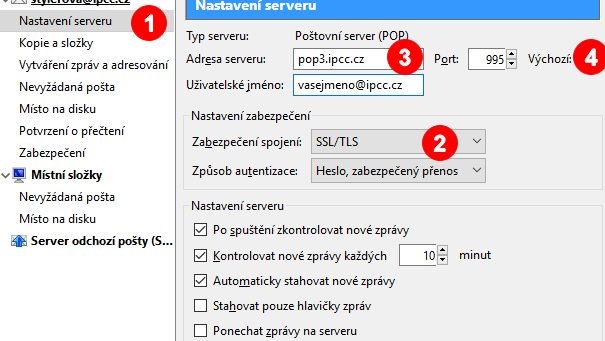
3) In the left menu, click on „Server Settings„. See picture 2.
4) In „Security Settings” select „SSL/TLS“ for „Connection security“ field. See picture 2.
5) Change server name to “imap.ipcc.cz” (for IMAP) or to “pop3.ipcc.cz” (for Pop3). See picture 2.
6) Set Port to „993“ (for IMAP) or „995“ (for POP3). See picture 2.
7) Do not change anything else.
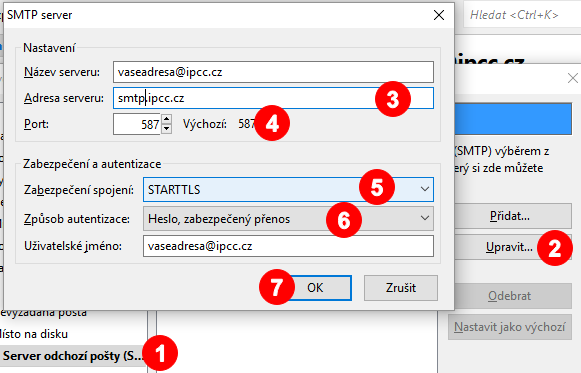
8) In the left menu, click on „Outgoing Server (SMTP)“ . See picture 3.
9) Click on „Edit…“ See picture 3.
10) „Server Name:“ must be „smtp.ipcc.cz„. See picture 3.
11) Port must be „587„. See picture 3.
12) In „Security and Authentication“ set „STARTTLS“ for „Connection security:“ field . See picture 3.
13) For „Authentication method:“ set „Normal password„. See picture 3.
14) Confirm by „OK„. See picture 3.